
How to Create Branded Patient Handouts (Without a Designer)
Add your clinic logo, name, and phone number to any patient handout. Live preview, one-click PDF. No design skills needed. Free templates for 14 specialties.
Clinics or solo practitioners need patient handouts for different scenarios like pre-care, post-care, medication guides, treatment guides, etc. So they have to hire someone to design the patient education handout templates that contain their branding, like logo, address, and contact info. Or they use Canva or Microsoft Word to design it themselves, or they have to search to find user-friendly handout templates.
Your patients leave the appointment with instructions they won't remember. Research published in the Journal of the Royal Society of Medicine found that patients forget 40-80% of what a doctor tells them before they reach the car. A branded handout keeps your clinic's name, logo, and phone number with those instructions for the patient's condition.
The problem is time. Most clinic staff don't have an hour to open a design tool, hunt for their logo file, adjust spacing, and export a PDF. That's more of a project instead of a workflow.
Here's how to create a professionally branded patient handout in under five minutes. No design skills. No software. No hassle.
What "Branded" Actually Means on a Handout
A branded patient handout isn't a design project but rather a clinical document with your clinic's identity attached to it. That means:
- Your logo in the header
- Your clinic name, so patients know who gave them this
- Your phone number, so they call you instead of Dr. Google
- Optionally: your email, address, and a clinic photo
That's it. The content is already written. You're just giving your branded look before the patient walks out the door. Remember that you can also edit and save the existing public handouts as your own private handouts or create new ones in a few clicks using AI.
How to Create Branded Patient Handouts on ClinicsFlows
ClinicsFlows handles the branding inside the browser. No downloads, no third-party tools, no logo-hunting. Here's the exact process.
Step 1: Find the Handout You Need
Go to patient handout templates and browse by specialty. There are hundreds of templates across 14 specialties. Looking for a dental post-op handout? Go to dental patient handout templates. Need something for pediatrics? The pediatric handout library has well-child visits, vaccine schedules, ADHD guides, and more.
Click any template to open and read it.
Step 2: Click "Download PDF" or "Print"
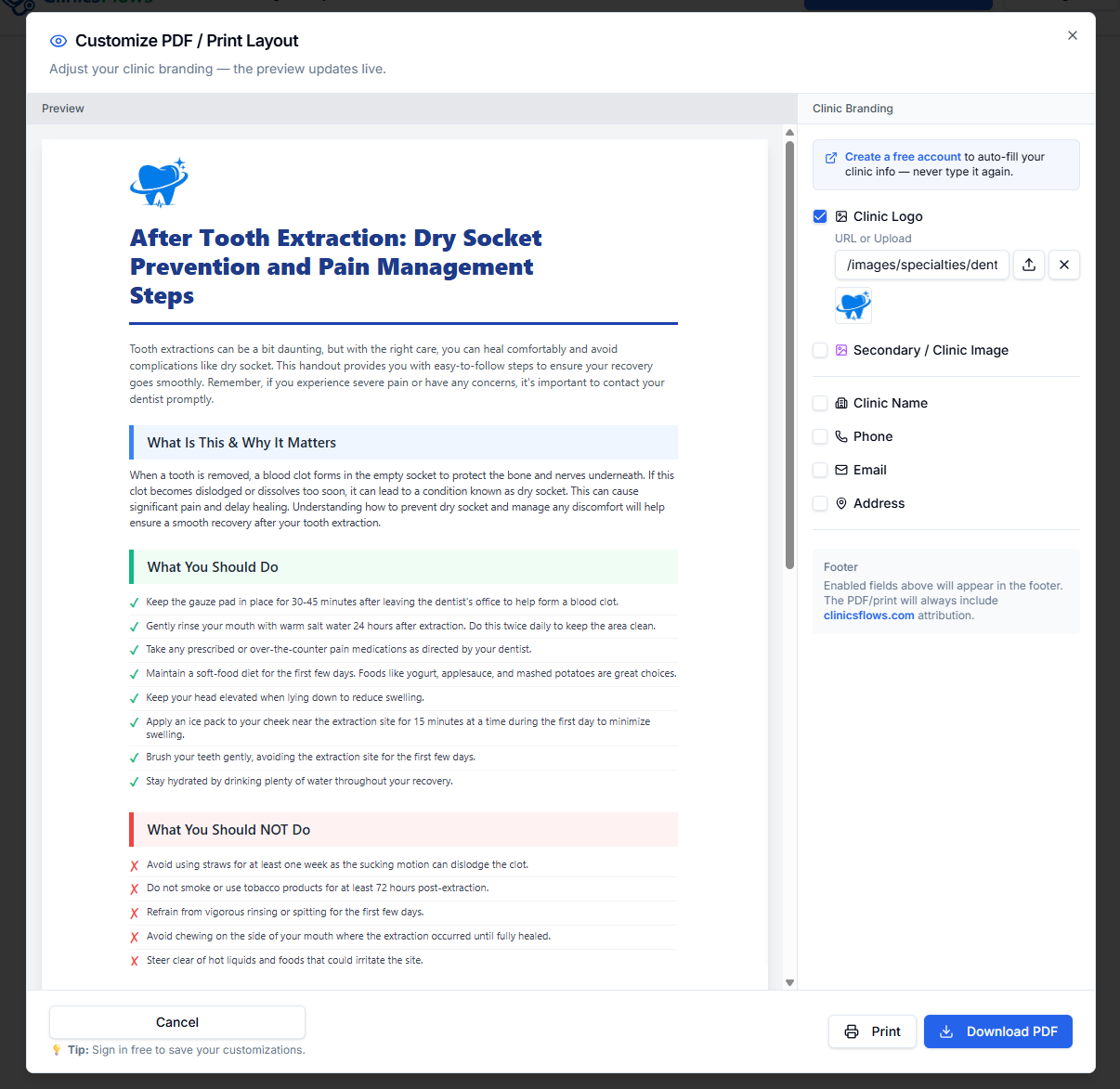
On the handout page, hit the Download PDF or Print button. Instead of downloading a plain PDF immediately, a "Customize PDF / Print Layout" dialog opens.
This is where the branding happens.
Step 3: Fill In Your Clinic Details
The dialog has two sides. Left: a live preview of exactly what the PDF will look like. Right: a set of checkboxes and input fields for your clinic details.
Tick each field you want to include:
- Clinic Logo: Upload a JPG, PNG, SVG, or WebP image file from your computer, up to 5 MB, or paste a URL. The logo drops into the header of the PDF.
- Secondary / Clinic Image: an optional photo shown as a circle in the layout. Good for a clinic exterior photo or a doctor headshot.
- Clinic Name: Type your full clinic name as you want it to appear.
- Phone: your main contact number.
- Email: your clinic email address.
- Address: street address, city, state.
Every field you fill in appears instantly in the preview on the left. You see exactly how the finished PDF will look before you download it. No guesswork.
Step 4: Download or Print
Click Download PDF to save the branded handout to your computer. Click Print to send it straight to your printer.
Done. That's the whole process.
How to Auto-Fill Your Clinic Branding Every Time
You can save the hassle of giving the clinic information every time you download/print. Instead of typing your clinic name and phone number every time, you download a handout. It adds up. ClinicsFlows has a fix for this.
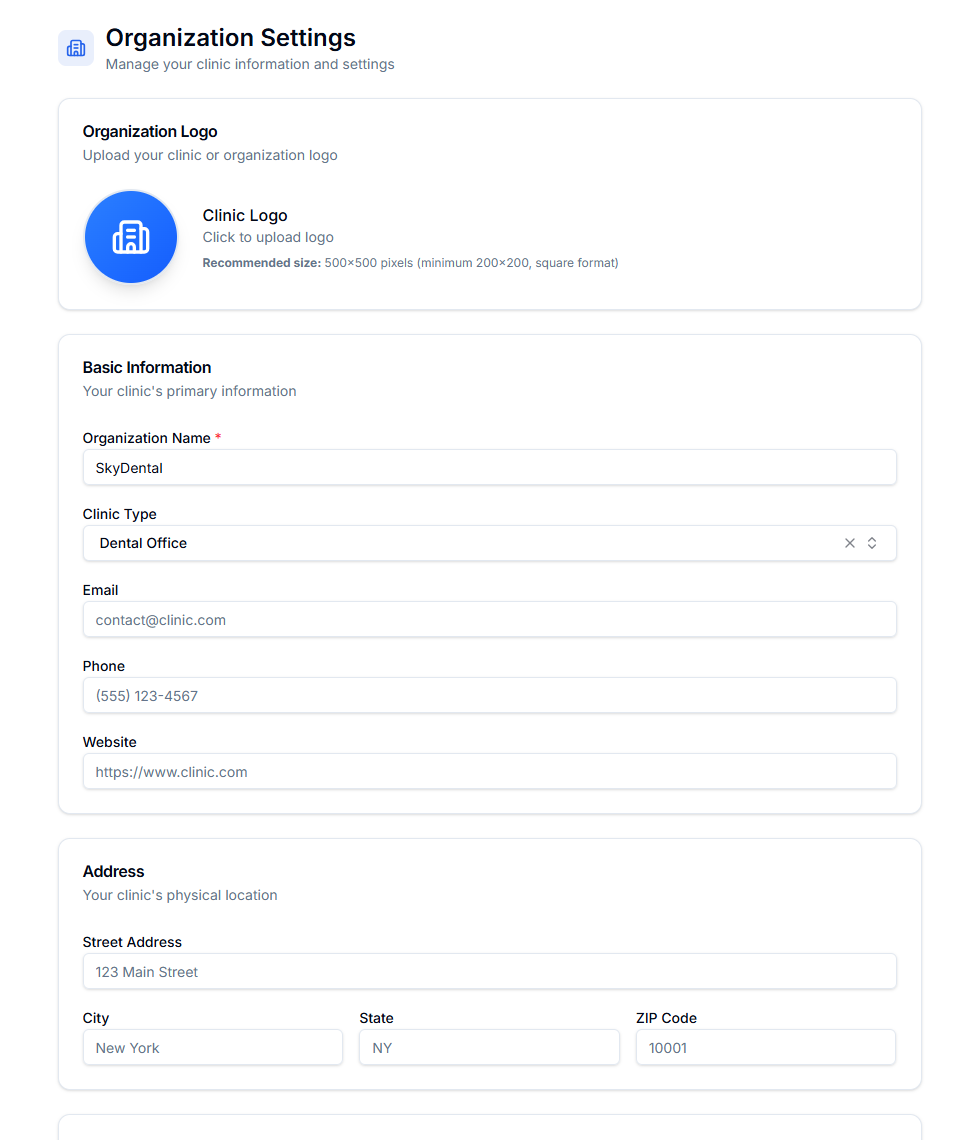
Create a free account and go to Clinic Settings under your organization profile. Enter your clinic name, logo, phone, email, address, and clinic type once. Save it.
From that point on, every time you open the branding dialog on any handout, your fields auto-populate. You just check the boxes and hit download. The whole process takes about 20 seconds.
For a front-desk coordinator downloading handouts for multiple providers throughout the week, this is the difference between a task and an afterthought. The most important thing is you can set the disclaimer for your handout as well, but you have to register for it.
What the Finished PDF Looks Like
The branded PDF includes your clinic logo in the header, followed by the handout title and summary content. At the bottom, your enabled fields appear in a footer strip: clinic name, phone number, email, and address. The footer also includes a "clinicsflows.com" attribution line. That's a fixed part of the layout for free-tier use.
The content itself is pre-written, structured, and clinically reviewed. It typically includes:
- A plain-language summary of the condition or procedure
- What to do and what not to do
- Normal vs. warning signs the patient should watch for
- Frequently asked questions
- A disclaimer reminding patients this is a template, not a substitute for their provider's guidance
You didn't write any of that. You just added your name to it.
Why Not Just Use a Generic Template?
What happens when a patient takes home a generic PDF with no clinic name on it? A week later, they can't tell you where it came from. They call a random number. They Google the wrong thing. It gives your clinic a professional image.
According to the Agency for Healthcare Research and Quality, nearly 9 in 10 adults have difficulty using everyday health information when it's not written clearly. And research from Health IT Analytics found that 50% of patients forget their treatment plan before they've had a chance to act on it.
A generic handout that addresses neither of those problems helps no one. No clinic contact. No clear writing. Nothing to take home and read again.
There are two practical advantages of branded, well-written handouts. They give patients something to reference at home, and they make your clinic the first call when questions come up.
Frequently Asked Questions
Do I need to create an account to add my clinic branding?
No. Any visitor can open the branding dialog, add a logo, type their clinic details, and download a branded PDF without signing in. Creating a free account just saves your clinic details so they auto-fill next time. You don't have to retype them.
What logo file types does ClinicsFlows accept?
JPG, PNG, GIF, SVG, and WebP are all supported. The file must be under 5 MB. PNG works best for logos with transparent backgrounds, since the logo drops into a white header area.
Can I edit the clinical content of the handout?
Yes, if you create a free account. From your dashboard, open any template, edit the content section by section, then save it to your clinic library. The branding dialog is available on both public templates and your saved custom versions.
Will the same branding appear on every handout I download?
Only if you save your clinic details in Settings. You'll need a free account for this. Guest users enter their branding fields each time the dialog opens. Logged-in users get their saved details auto-populated automatically.
Does the PDF include a disclaimer?
Yes. Every handout includes a note that it's a template and not a substitute for professional medical advice. Logged-in users can also set a custom disclaimer in Clinic Settings, such as your clinic's standard legal footer text, and it will appear on every PDF you download.
Conclusion
Branded patient handouts don't require a designer, a design tool, or half an afternoon. On ClinicsFlows, you pick a template, fill in your clinic details in a live preview dialog, and download a print-ready PDF. Your logo goes in the header. Your phone number goes in the footer. The patient leaves with something that points back to you.
Browse 1,400+ free clinic handout templates at ClinicsFlows. Organized by specialty, branded in under five minutes, ready to print or send digitally.